Article
Canva for the Classroom
In today’s fast-paced digital world, visual content creation isn’t just the job of a graphic designer — it’s everyone’s job. From teachers to small business owners, social media influencers to high-powered executives, everyone needs tools to create eye-catching, high-quality content that can make a lasting impression on prospective customers.
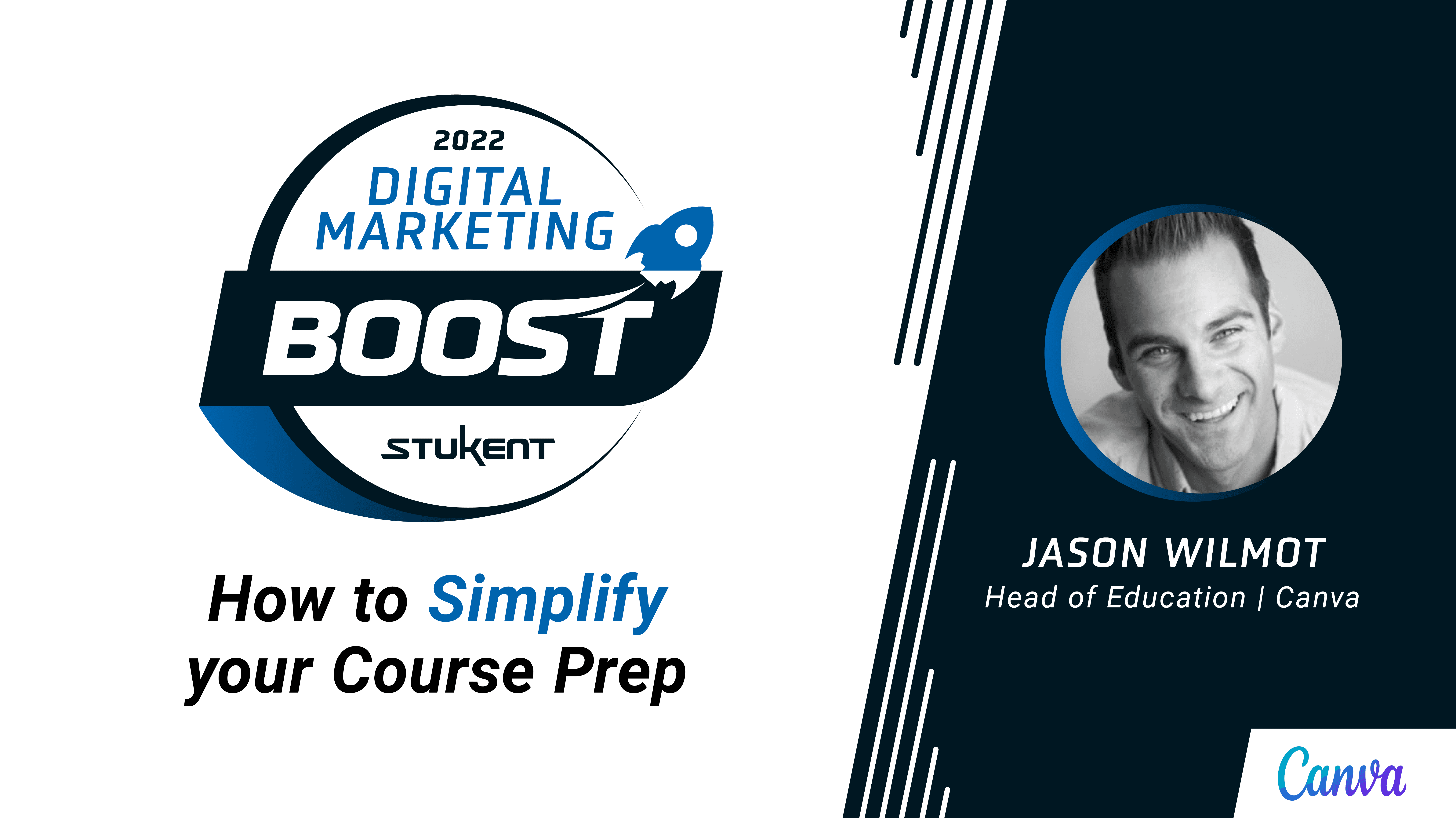
That’s why Stukent invited Jason Wilmot, Head of Education for Canva, to introduce us to the best Canva features for education. From the classroom to the boardroom, Canva has been designed to make everyone look like a pro.
The Best Canva Features For Education
Graphic design used to be very complicated — designers needed to utilize various platforms and programs for stock photos, content management, photo editing, publishing, and more. Canva, however, places the entire design ecosystem into one simple platform. With millions of stock photos, illustrations, video editing tools, and design templates, Canva takes care of the design elements so that students and educators can focus on marketing tactics.
But how do you know which of Canva’s many features are most beneficial to educators and students? Wilmot shared some of his favorite Canva features for the classroom.
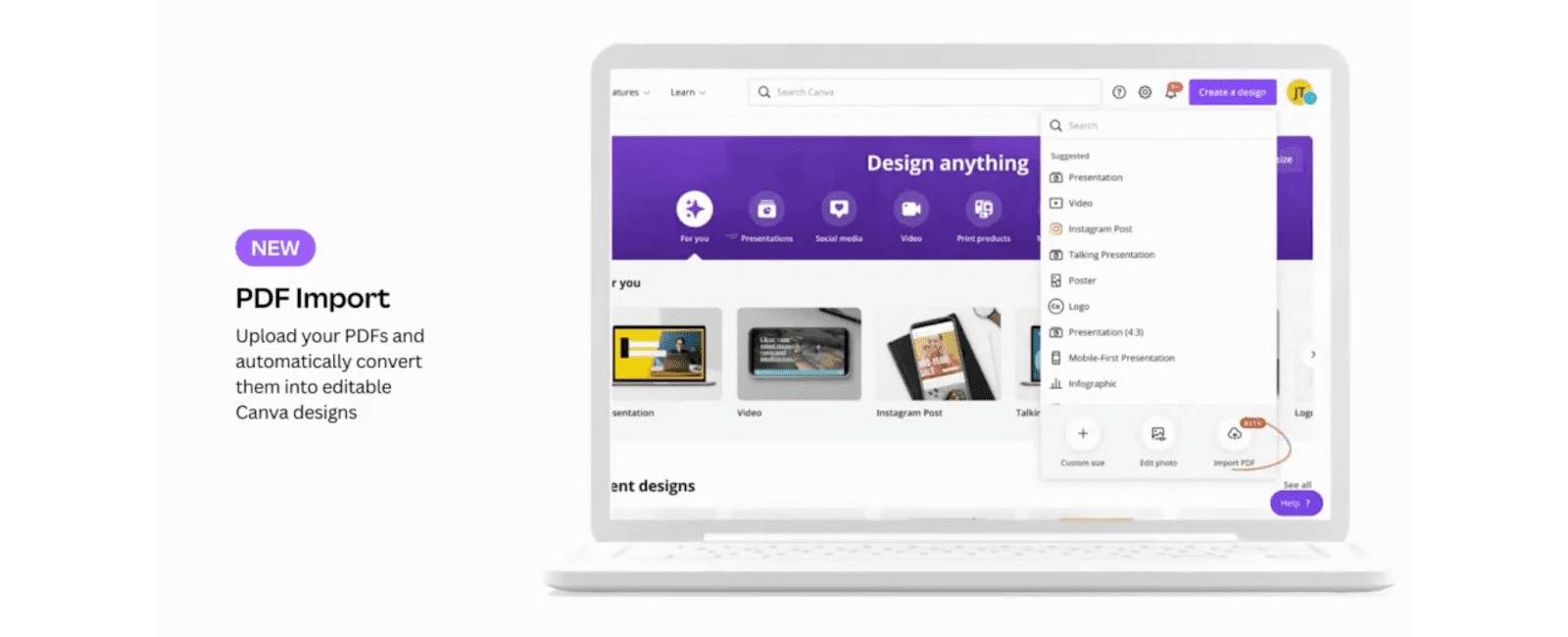
PDF Import
Canva converts PDFs into editable designs, allowing users to update a document’s images, text, and design elements.
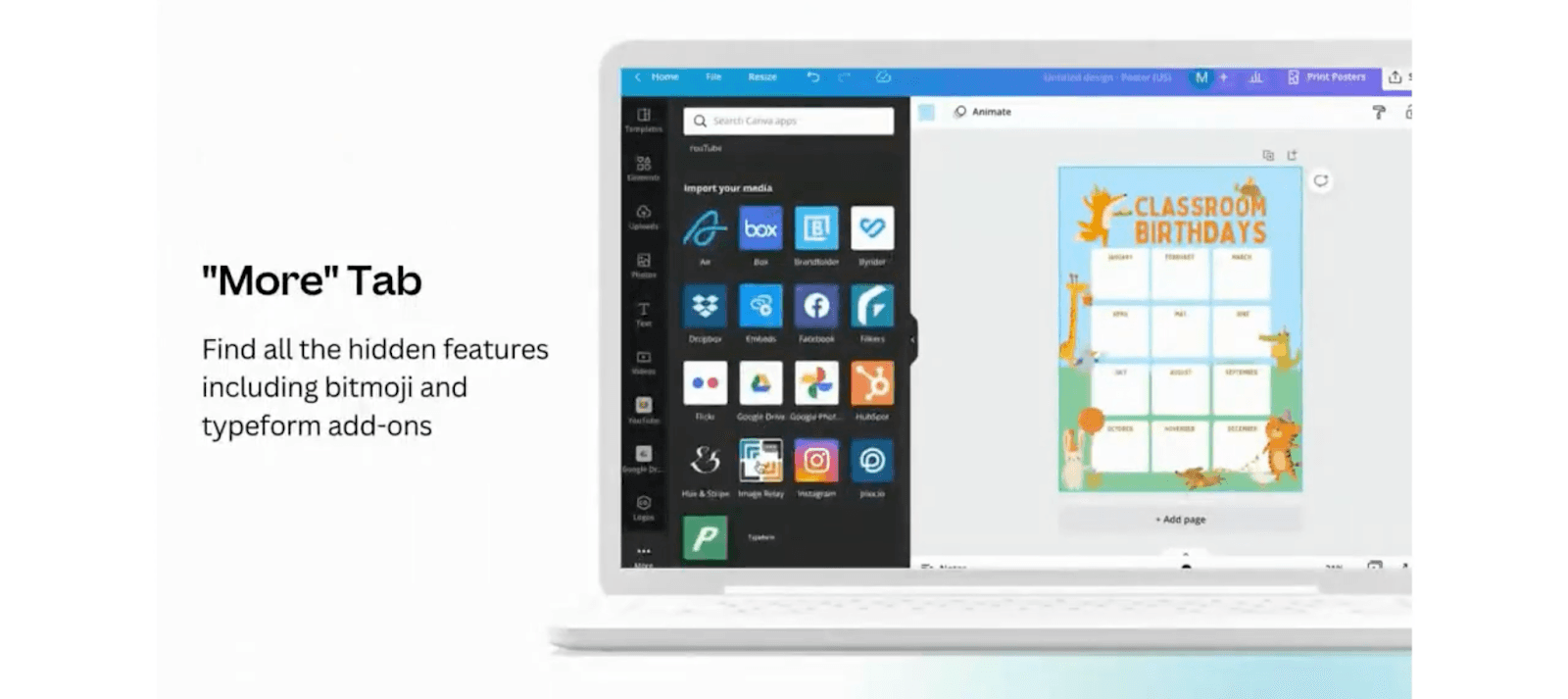
The “More” Tab
Under the “More” tab, Canva contains integrations for HubSpot, YouTube, Instagram, Google Maps, and other content providers. This tab also contains a drawing application, allowing users to draw on designs and videos.
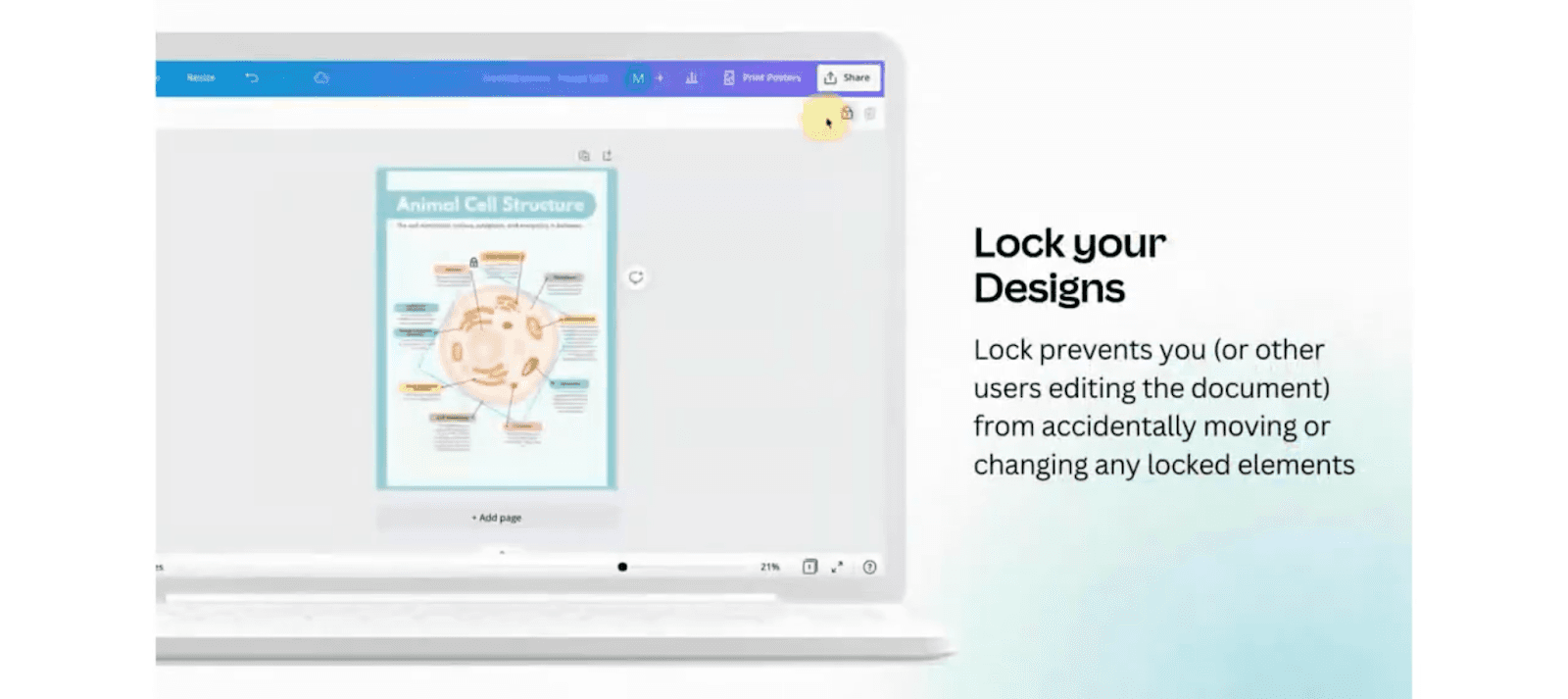
Lock Your Designs
Educators can lock design elements and text boxes to prevent students from making unnecessary changes.
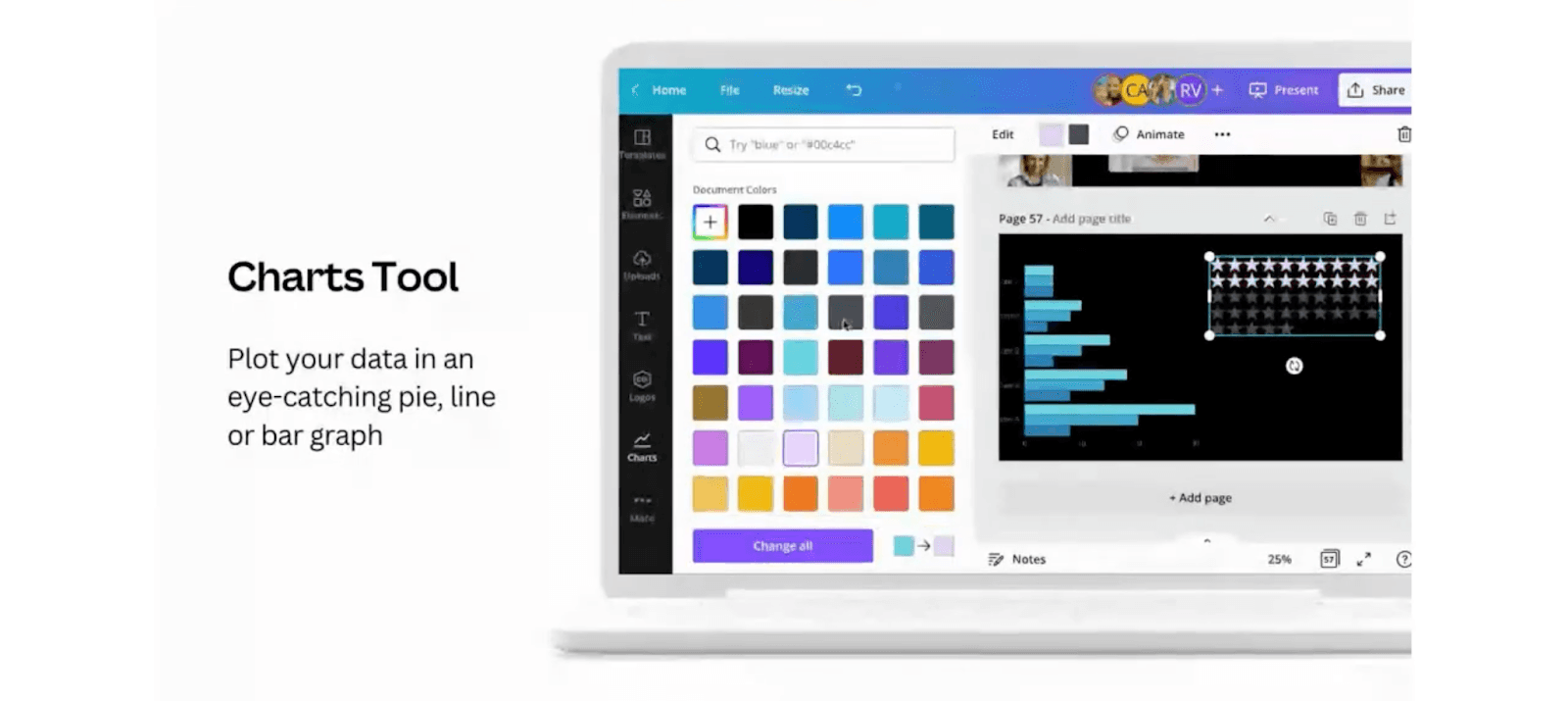
Charts Tool
Canva integrates with Google Sheets to visualize data in bar, line, or pie charts, and in tables.
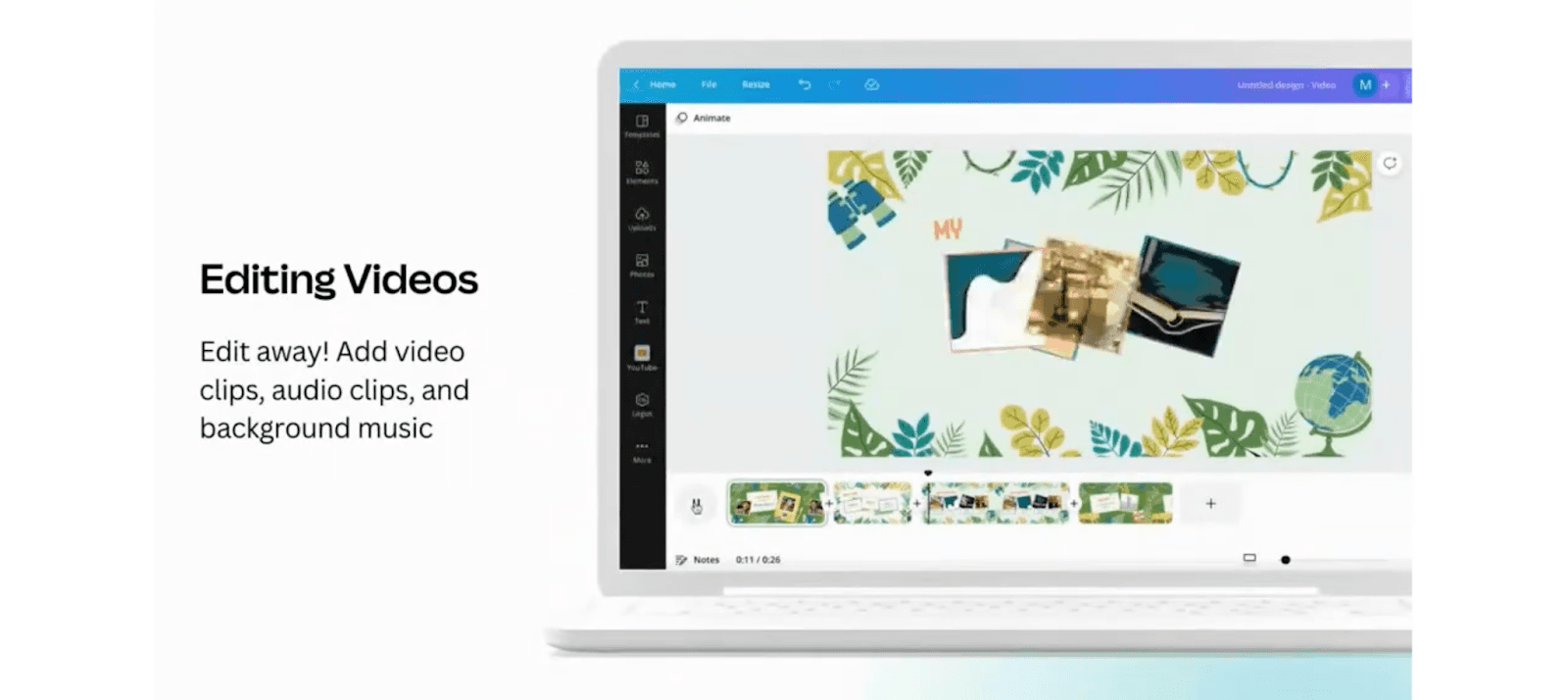
Editing Videos
Video editing is a core function of marketing. With Canva, users can record, upload, and edit videos. Canva also allows users to add visuals, audio clips, background music, and more to a video.
Seven Creative Ways To Use Canva In The Classroom
Canva brings a lot of functionality to a marketing classroom, giving students the power to create mock advertisements, arresting infographics, engaging presentations, posters, flyers, and more. Better yet, Canva’s integrations allow educators to build practical assignments that will give students hands-on experience with marketing concepts.
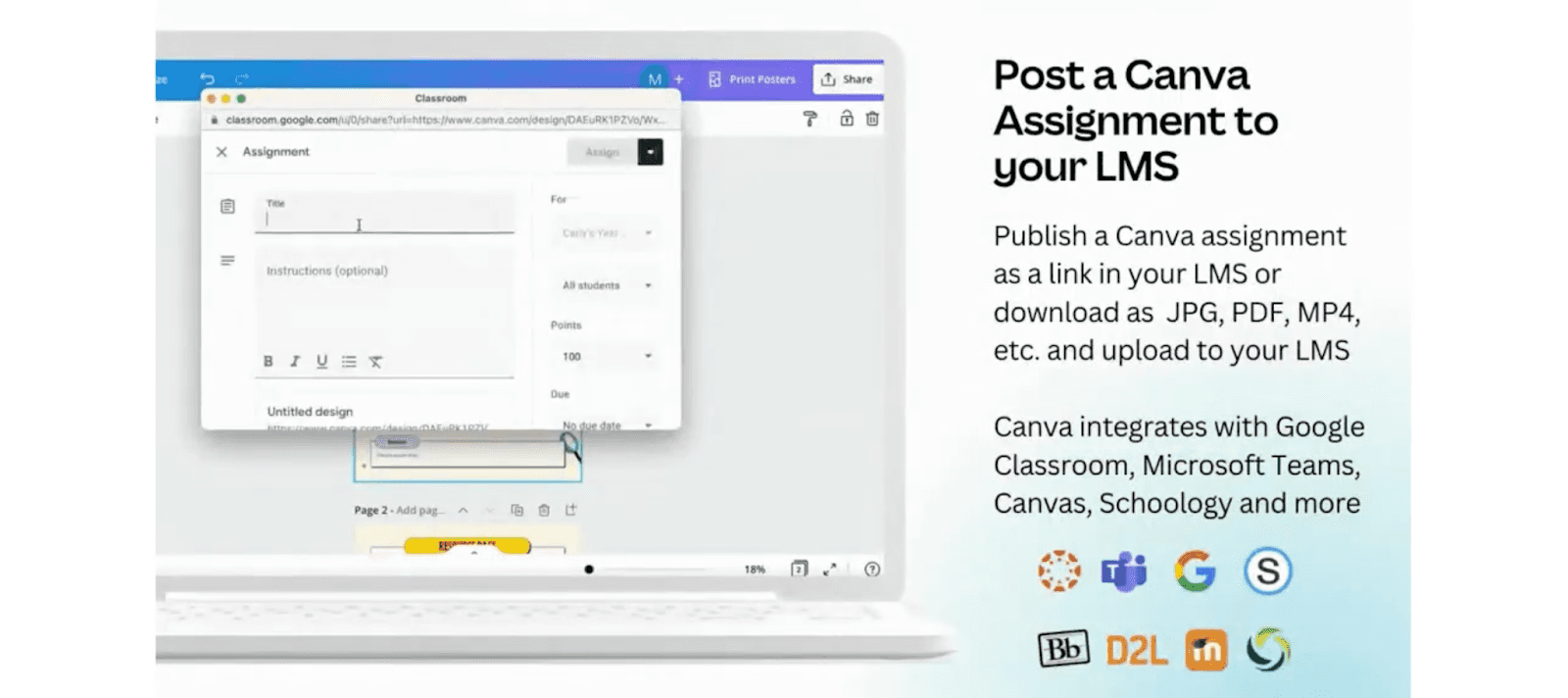
1. Post a Canva Assignment to Your LMS
Canva features learning management system (LMS) integration with products such as Blackboard, Canvas, and Schoology, which makes it easy to create new assignments for students.
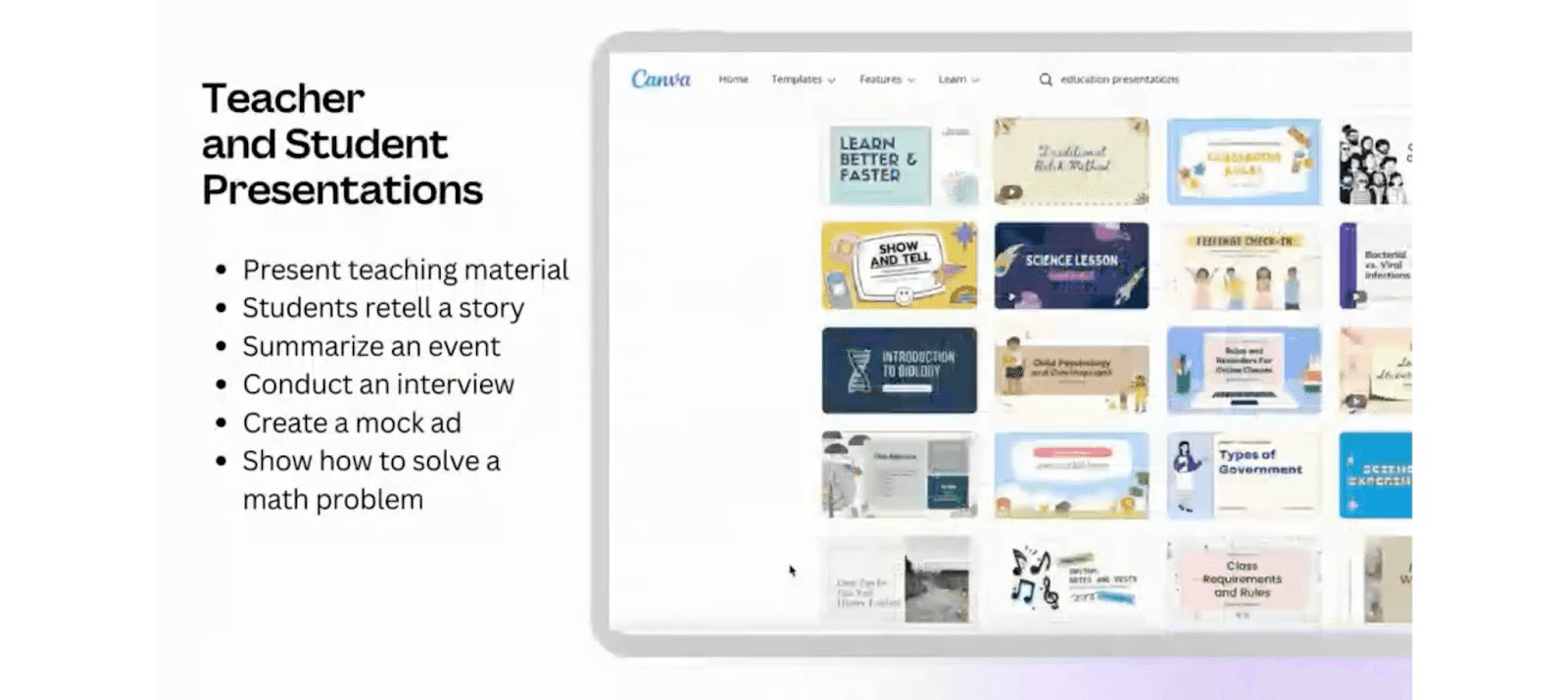
2. Teacher and Student Presentations
With Canva, educators and students can create clean, eye-catching visual documents. From presentations to advertisements, Canva has great tools to take assignments to the next level.
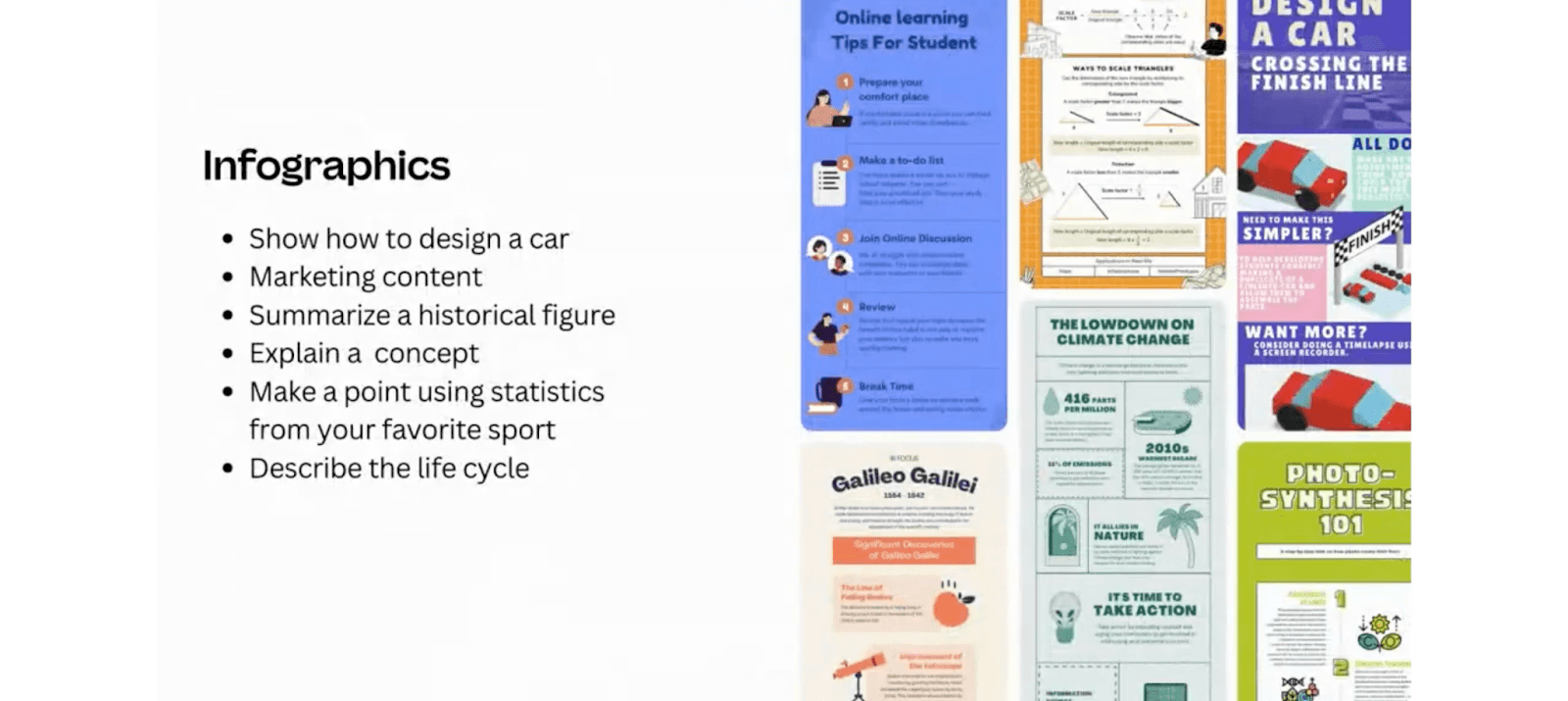
3. Infographics
Assign students to build infographics in Canva to tell an engaging visual story, build a how-to, or share enlightening statistics.
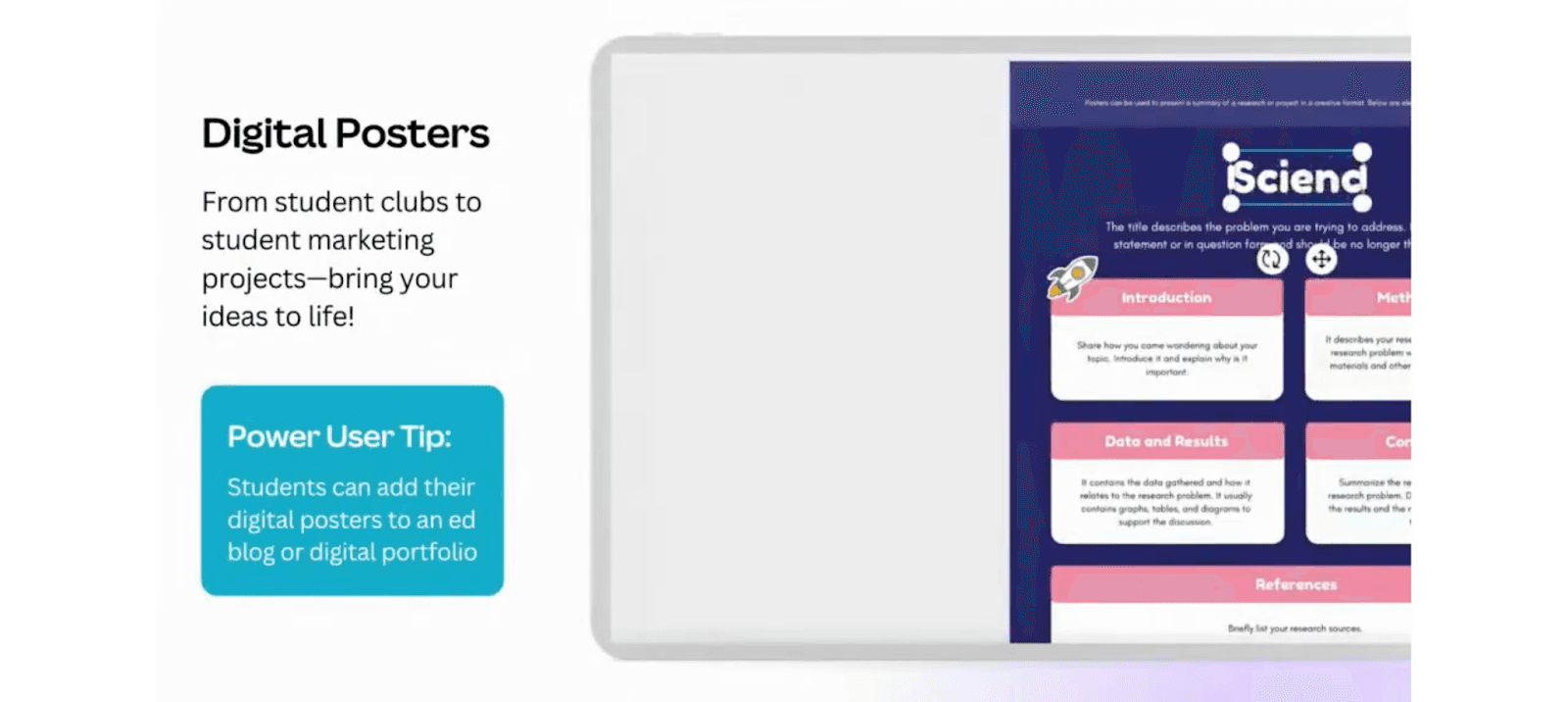
4. Digital and Print Posters
With Canva’s posters, students can build a digital portfolio of work. Assign students to create posters or flyers for mock professional events, conferences, product launches, and more.
5. Collaboration Tools
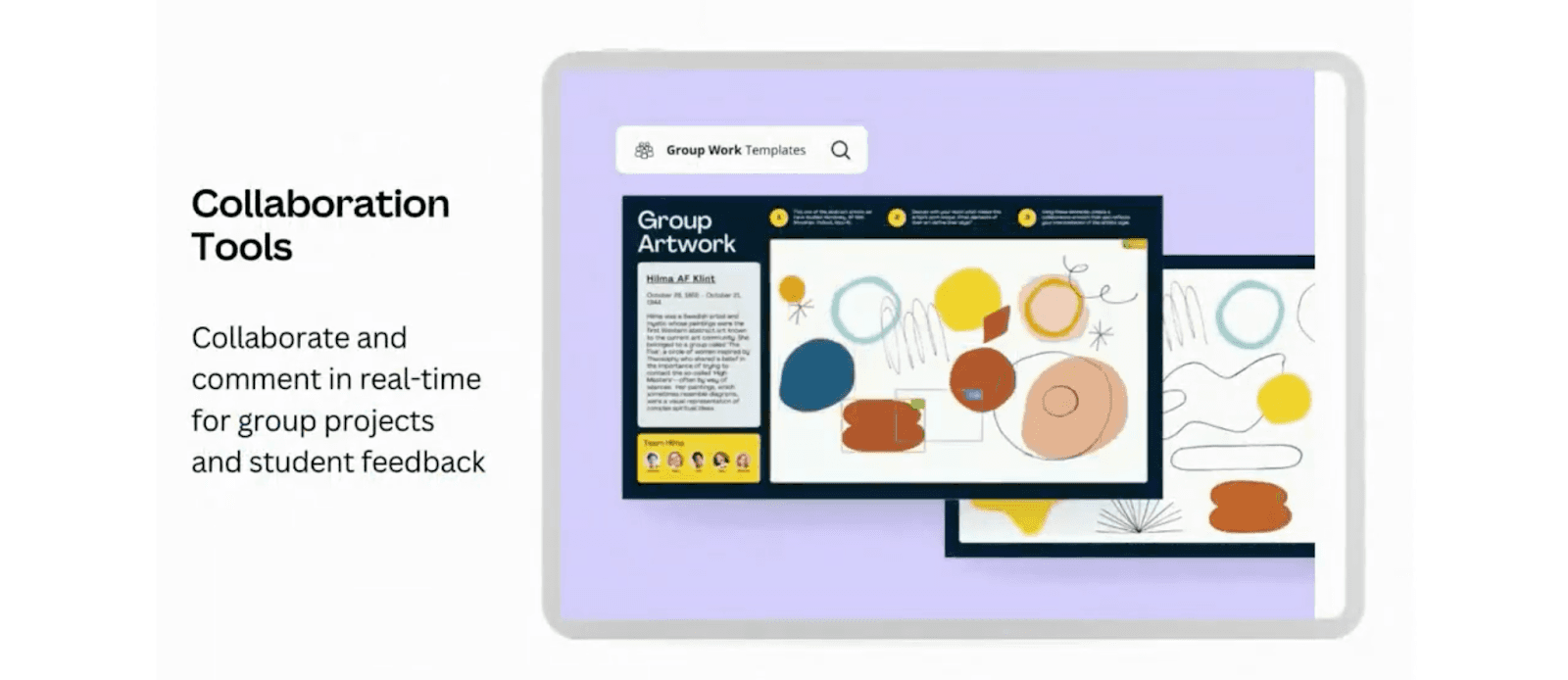
In Canva, up to 50 students can work on the same template at once, enabling students to collaborate in real-time for group projects, brainstorming sessions, and whiteboards.
6. Newsletters
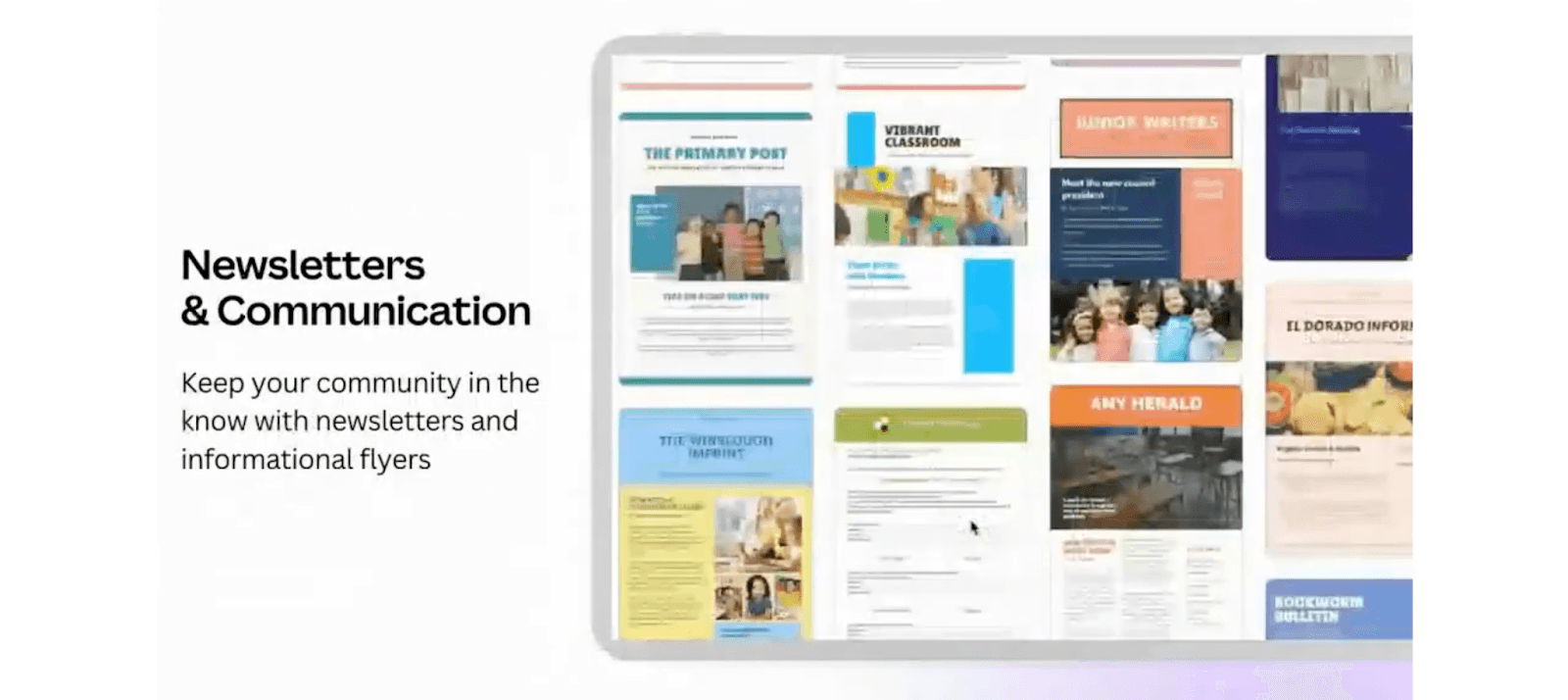
Have students build newsletters for email marketing campaigns in Canva. Students can practice copywriting, tailoring their messaging to a target audience, and selecting the appropriate visuals for their content.
7. Comic Strips, Storyboards, Digital Books, and Magazines
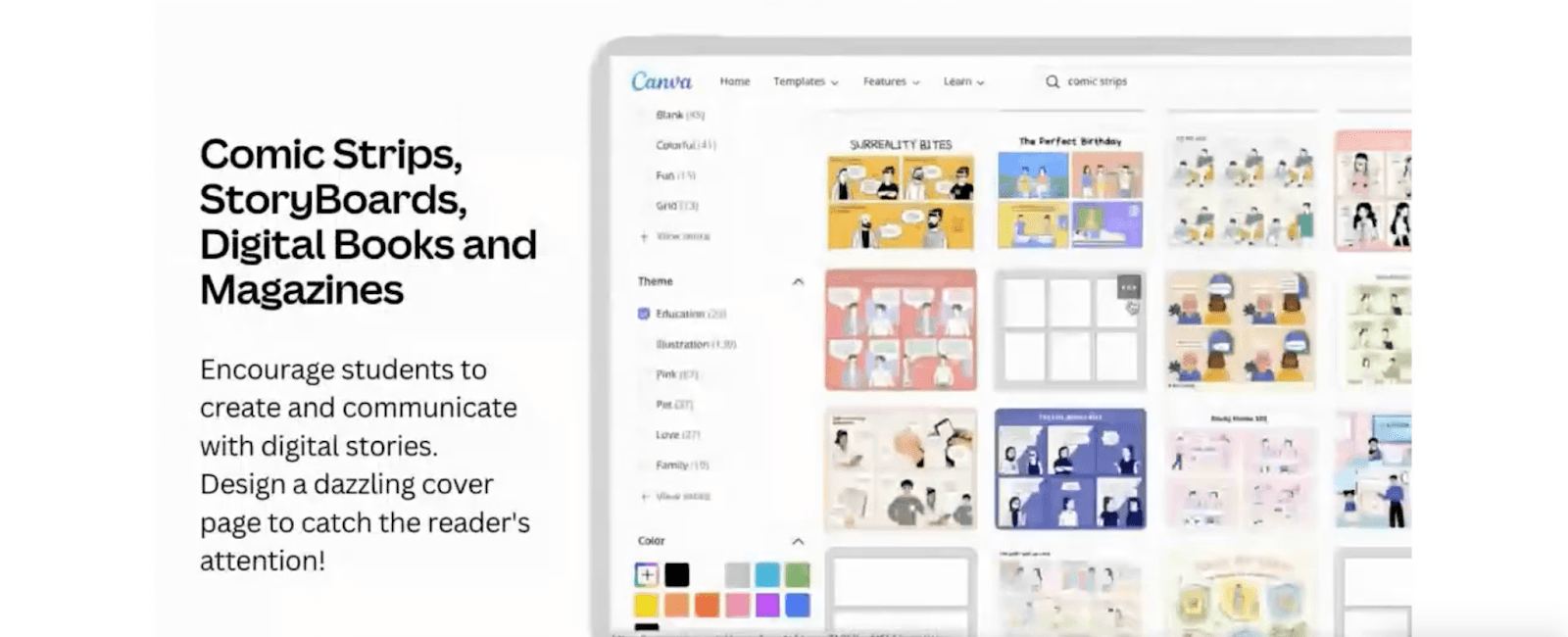
Or ignite students’ creativity with Canva’s comic strips, storyboards, and digital books.
Wilmot’s suggestions are just a springboard — there are countless ways educators and students can use Canva in the classroom. Whether you want to give your students hands-on marketing experience or supplement your classes with inspiring creative work, Canva brings color into your classroom.
“Digital Marketing Boost: Elevate Your Digital Marketing Program” was a one-day event held on January 21, 2022. This Stukent webinar focused on actionable, useful tips and tools for marketing educators. It featured expert speakers from SEReS University, HubSpot, and Canva. You can access the webinar, sample assignments, and more on the webinar homepage.
To learn more about Stukent’s revolutionary courseware and simulations, or to get free instructor access to our digital marketing products, visit our website.